|
|
|
|||
|
How to set the New Refresh interval and disable “Scavenge stale resource records” on the DNS Zone
Set
the New Refresh interval and disable “Scavenge stale resource records” on
the
DNS Zone:
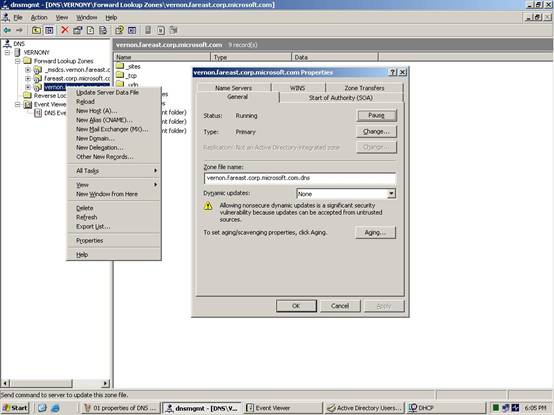
1.
In the
DNS Management console, open
the Properties of the
DNS Zone and click the “Aging”
button;
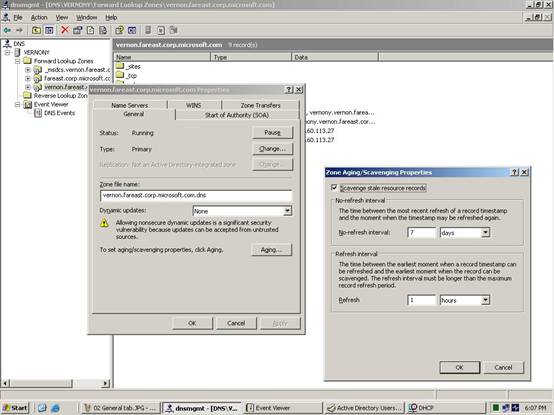
2.
Uncheck “Scavenge stale resource records” and Change the “Refresh interval”
to 1 hour;
Timestamp
3.
Click
“OK” on both the “Zone
Aging/Scavenging
Properties” dialog and the
DNS Zone Properties dialog
4.
Once
back in the
DNS Management console,
Refresh the
DNS Zone using the F5 key or
right-click on the zone and click Refresh.
Re-enable “Scavenge stale resource records”: repeat the 4 steps above and
check the “Scavenge stale resource records” option.
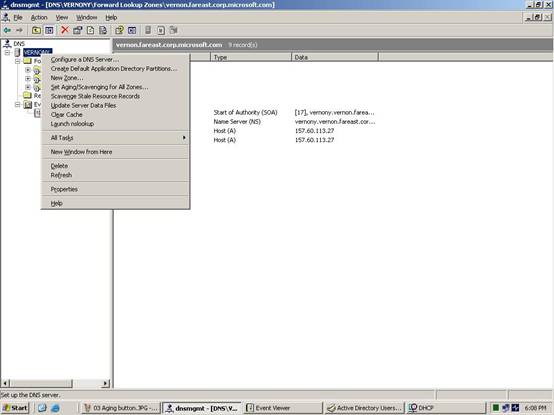
5.
Initiate
Scavenging by right-clicking
on the
DNS Server and clicking
“Scavenge stale resource records”.
DNS Server
6.
Verify
that
Scavenging has completed
successfully by looking in the
DNS Server Event Log for
DNS Event 2501.
Post your questions, comments, feedbacks and suggestions Related Topics
|
|
|
This web is provided "AS IS" with no warranties.
Copyright © 2002-2018
ChicagoTech.net,
All rights reserved. Unauthorized reproduction forbidden.